Help with your Log-In to your personal space
How to Log In to my personal space
To explore and enjoy my Personal Space, I will need:
- my service number
- my date of birth (ddmmyyyy)
- the password you usually used on my previous Personal Space (or the one received by mail if I have never logged in to the previous Personal Space before)
- an email address that has been verified by the CSM
These are required for the first log-in to my Personal space.
When I will need to log in again, my username will remain the same as when I logged in for the first time:
Format: ‘matricule’ ‘-’ ‘date of birth’ Example: ‘123456-03091985’
If I have an MConnect digital identity, I can also use it to log in to my personal space.
Log in via the CSM mobile app:
Updated on June 24, 2026
Since 24 June 2026, the way you log in to your Personal Account has changed, with the introduction of multi-factor authentication (MFA).
- Until now, to log in to my Personal Account, I only used my usual username and password (or biometric authentication, such as a fingerprint or my smartphone’s passcode)
- From now on, once I’ve logged in, if I don’t use biometrics, my fingerprint or my smartphone’s passcode, I must choose a two-factor authentication method:
- Either by choosing to receive a 6-digit code by email,
- Or by using a mobile authentication app
- Please note: you choose your payment method when you log in for the first time; you can change it at any time in your personal profile.
If I encounter a technical error message whilst trying to log in via the mobile app:
On Android :
- I click on the ‘Switch user’ button that appears on the blue technical error screen
- I follow the instructions to log in again
- On the second login: I can choose to use biometrics, my fingerprint or the phone’s passcode, so that I no longer have to go through two-factor authentication every time I log in.
On iPhone :
- I need to uninstall and reinstall the mobile app if the version of iOS does not display the ‘Switch User’ button on the blue technical error screen
- I follow the instructions to log in again
On the second login: I can choose to use biometrics, my fingerprint or the phone’s passcode, so that I no longer have to go through two-factor authentication every time I log in.
Please note:
I will be asked to provide two-factor authentication (MFA) every time I log in to the mobile app, unless I use one of the following:
- Biometric authentication
- Fingerprint
- Phone lock code
Logging in via a mobile web browser or computer:
Updated on 24/06/2026
- Option 1: I have already logged in to the previous Personal Space
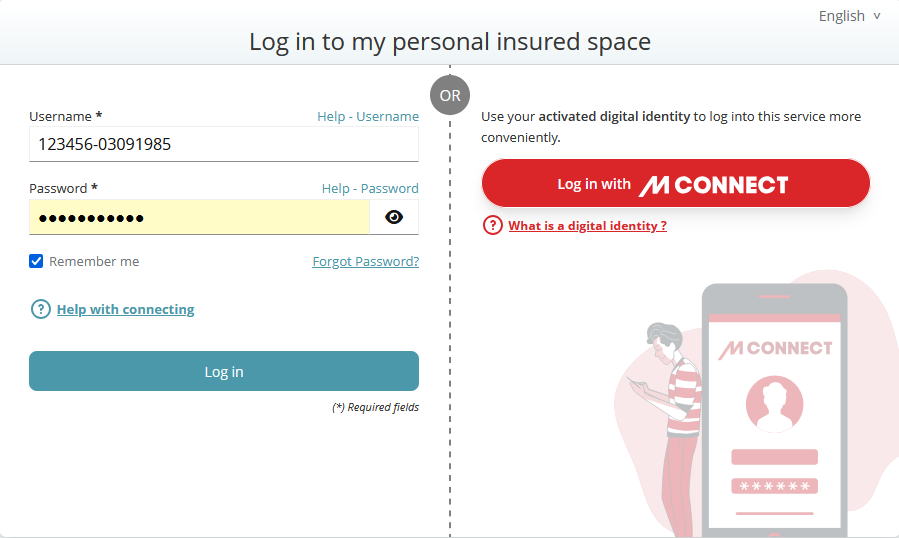
- Step 1:
- - In the " Username" field, enter my username in the following format:
- "ID number" "-" "date of birth"
- Example: "123456-03091985"
- - In the " Password" field, enter the usual password you used to log in
- - Click on the "Log in" button.
-
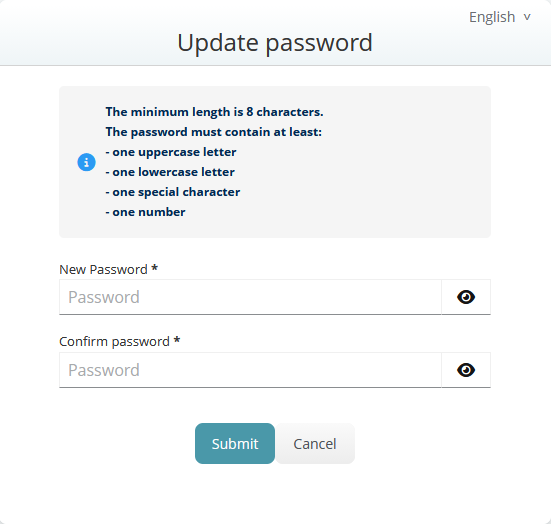
- - If my password has expired, I need to enter a new one
-
- Step 2: From 24 June 2026
- I need to set up two-factor authentication
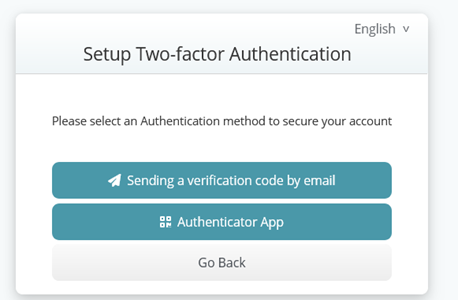
- After clicking the ‘Log in’ button, I need to choose a two-factor authentication method
- either by choosing to receive a 6-digit code by email
- or by using a mobile authentication app
- Please note: you choose your preferred method when you log in for the first time; you can change this at any time in your personal profile
-
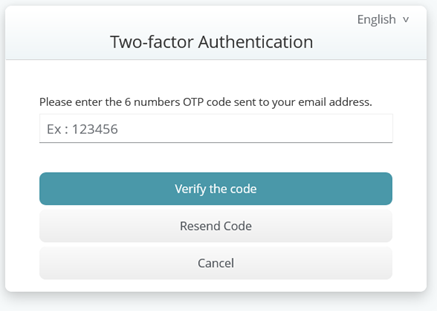
- If I choose to have a verification code sent by email:
- I will receive an email containing a 6-digit verification code at my verified email address.
- This code is valid for 5 minutes.
-
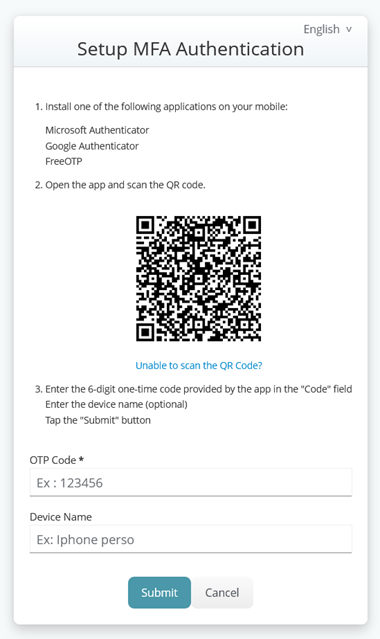
- If I choose to use a mobile authentication app:
- I need to scan the QR code on the screen and enter the one-time password (OTP) displayed in the app.
-
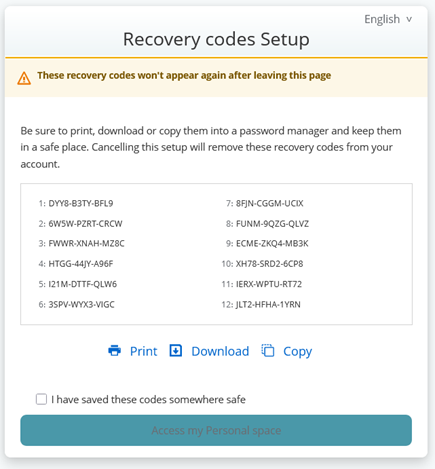
- After clicking the ‘Verify code and enable MFA’ button, I need to print, copy or download the recovery codes in case I lose my smartphone.
- Please note: each recovery code can only be used once and must be used in the order in which they are displayed.
-
- Step 3 :
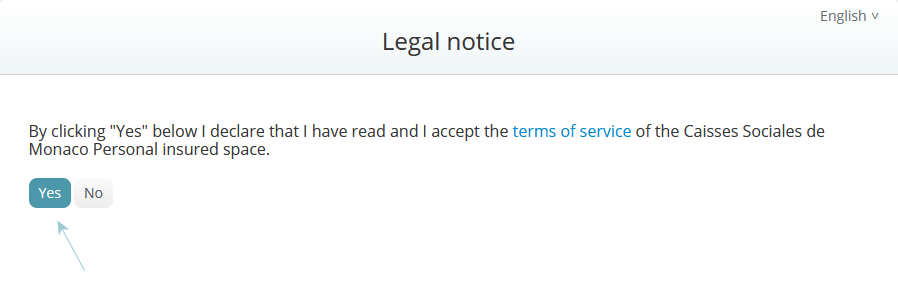
- Once two-factor authentication has been verified:
- - I click on the "Yes" button to accept the General Terms and Conditions of Use (GCU) of the Personal Space after reading them.
- NB: only on my first login or when the Terms and Conditions are updated.
-
- Step 4 :
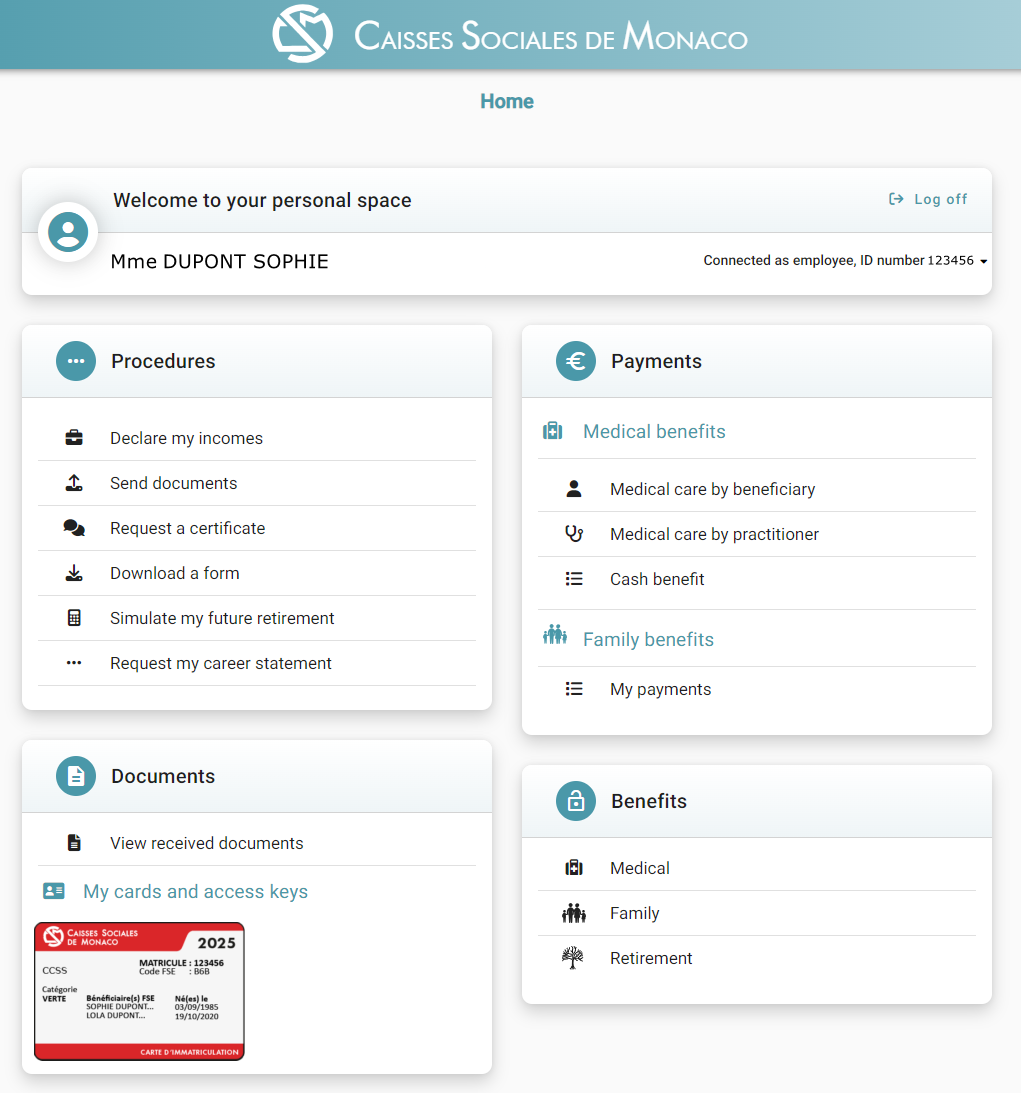
- - I am now logged in to your new Personal Space.
-
- Option 2 : I have never logged in to the previous Personal Space
- Step 1 :
- - In the "Username" field: enter my username in the following format:
- "ID number" "-" "date of birth"
- Example : "123456-03091985"
- - In the "Password" field: enter the password you received by mail to my postal address.
- - Click on the "Log in" button. .
-
- Step 2:
- - In the "New Password" field: choose and enter a new personalised password.
- When you change your password, a format check is carried out. Your password must match the following characteristics to be accepted:
- It must be a minimum of 8 characters, including at least 1 special character, 1 number and 1 capital letter,
- It must be different from my username,
- It must be different from your e-mail address.
- - In the " Confirm new password" field: confirm the new password by entering it again exactly as above.
- - Click on the "Submit" button".
-
- Step 3:
- - In the "E-mail Address" field: enter a valid e-mail address..
- - Click on the "Save" button to save the e-mail address.
-
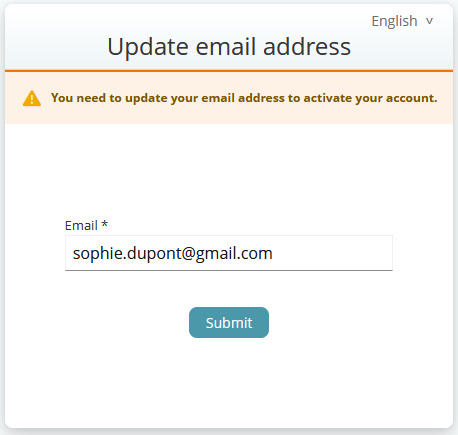
- Step 4:
- A screen will appear inviting you to verify your e-mail address to activate my account.
-
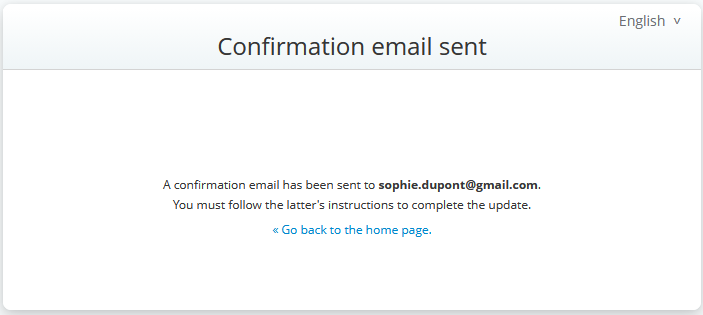
- Step 5:
- Click on the validation link in the e-mail you received "E-Mail Address Verification." [Validation de votre email]
-
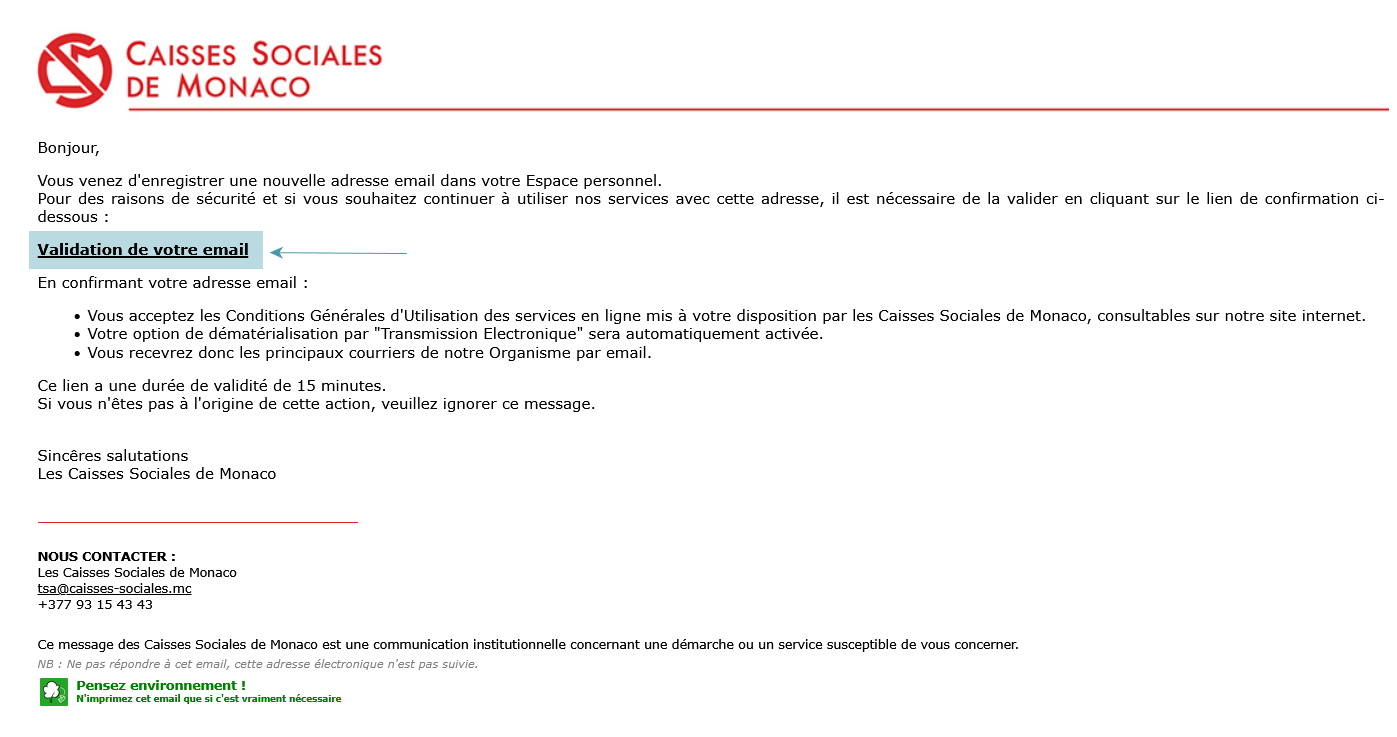
- Step 6: From 24 June 2026
- I need to set up two-factor authentication
- After clicking the ‘Log in’ button, I need to choose a two-factor authentication method
- either by choosing to receive a 6-digit code by email
- or by using a mobile authentication app
- Please note: you choose your preferred method when you log in for the first time; you can change this at any time in your personal profile
-
- If I choose to have a verification code sent by email:
- I will receive an email containing a 6-digit verification code at my verified email address.
- This code is valid for 5 minutes.
-
- If I choose to use a mobile authentication app:
- I need to scan the QR code on the screen and enter the one-time password (OTP) displayed in the app.
-
- After clicking the ‘Verify code and enable MFA’ button, I need to print, copy or download the recovery codes in case I lose my smartphone.
- Please note: each recovery code can only be used once and must be used in the order in which they are displayed.
-
- Step 7 :
- Once two-factor authentication has been verified:
- - I click on the "Yes" button to accept the General Terms and Conditions of Use (GCU) of the Personal Space after reading them.
- NB: only on my first login or when the Terms and Conditions are updated.
-
- Step 8 :
- - I am now logged in to your new Personal Space.
-
Useful to know:
I have the option to customise my login credentials in my Personal Profile, by modifying either the "Username" field, the " Password" field, or both.
However, my default login ID remains in the "ID number-date of birth" format and can still be used even after I have customised the ‘username’ field
- My password must match the following characteristics to be accepted:
- It must be a minimum of 8 characters, including at least 1 special character, 1 number and 1 capital letter,
- It must be different from your username,
- It must be different from your e-mail address.
- My new password will be recognised immediately.
- We advise you to avoid choosing an identical password for all my personal accounts.
- My password is valid for one year, after which I will have to change it to be able to reconnect.
If I am still having problems logging in, I can contact the CSM at tsa@caisses-sociales.mc.

